
To eliminate micro-stutter in your PC games, start by enabling G-Sync or FreeSync if your monitor supports them, as these adapt your display to fluctuating frame times. Turn off V Sync to prevent input lag and uneven rendering, but consider enabling adaptive sync tech for smoother gameplay. Monitor your frame times with tools like MSI Afterburner to identify irregular pacing. Fine-tuning graphics settings, updating drivers, and optimizing your system can further reduce stutter. Keep exploring for more effective solutions.
Key Takeaways
- Enable G-Sync or FreeSync to synchronize your monitor with the GPU for smoother frame delivery.
- Disable V Sync if it’s causing frame pacing issues; alternatively, set it to adaptive sync modes.
- Monitor frame times using tools like MSI Afterburner or RTSS to identify and improve inconsistent pacing.
- Update graphics drivers regularly to fix bugs and optimize frame stability.
- Adjust in-game graphics settings to reduce load and improve overall frame pacing and smoothness.
Micro-stutter in PC games occurs when you notice uneven or choppy frame delivery despite high frame rates, disrupting your gaming experience. This frustrating issue often feels like the game jitters or pauses intermittently, making smooth gameplay seem out of reach. The root causes usually involve V Sync issues and poor frame pacing, both of which can considerably impact how your game appears on screen. Understanding these factors is key to eliminating micro-stutter and enjoying seamless gameplay.
V Sync, or Vertical Synchronization, is designed to prevent screen tearing by syncing your GPU’s frame output with your monitor’s refresh rate. However, when V Sync is enabled improperly or conflicts with your system’s settings, it can introduce input lag and cause inconsistent frame delivery. This can result in micro-stutter because the frames aren’t displayed at regular intervals, even if your GPU is producing high frame rates. Disabling V Sync temporarily or switching to adaptive sync technologies like G-Sync or FreeSync often helps smooth out these issues. These technologies dynamically adjust your monitor’s refresh rate to match your GPU’s frame output, reducing tearing and minimizing stutter.
V Sync can cause micro-stutter if enabled improperly; try switching to G-Sync or FreeSync for smoother gameplay.
Frame pacing plays an essential role in delivering a smooth visual experience. Even if your game runs at a high frame rate, uneven distribution of frames over time creates perceptible stutter. Frame pacing issues happen when frames are delivered irregularly, causing the game to seem jittery despite the high FPS count. To improve frame pacing, you can enable features like V Sync or G-Sync, which coordinate frame output more effectively. Some games also offer internal settings or options to control frame timing, which can help stabilize the delivery of frames. Additionally, updating your graphics drivers and ensuring your system is optimized can make a noticeable difference, as outdated drivers often cause frame timing irregularities. Modern graphics cards also utilize frame time management to ensure more consistent delivery of frames, which is crucial for smooth gameplay.
Another effective approach is to monitor your system’s performance with tools like MSI Afterburner or RTSS, which reveal frame times and help identify pacing irregularities. If you notice inconsistent frame times, tweaking your GPU settings or reducing in-game graphics can help. Overclocking your GPU or CPU might improve overall performance, but it can sometimes introduce instability if not done carefully. In contrast, a balanced system with appropriate hardware and settings ensures smoother frame pacing, reducing micro-stutter.
Ultimately, eliminating micro-stutter involves a combination of optimizing your display settings, updating drivers, and choosing technologies that prioritize consistent frame delivery. By addressing V Sync issues and improving frame pacing, you’ll find your gaming sessions much smoother and more enjoyable. Instead of feeling like your game is jumping or stuttering, you’ll experience fluid, responsive gameplay that truly matches your skill and effort.

ROVE R2-4K DUAL Dash Cam Front and Rear, STARVIS 2 Sensor, FREE 128GB Card Included, 5G WiFi - up to 20MB/s Fastest Download Speed with App, 4K 2160P/FHD Dash Camera for Cars, 3" IPS, 24H Parking Mode
4K FRONT + 1080P REAR RECORDING – ROVE R2-4K DUAL dash cam offers dual-channel recording capabilities, capturing footage...
As an affiliate, we earn on qualifying purchases.
Frequently Asked Questions
How Does Micro-Stutter Affect Overall Gameplay Experience?
Micro-stutter disrupts your gameplay by causing inconsistent frame pacing, making the game feel choppy and unpredictable. This leads to a frustrating experience, especially during fast-paced action, because it increases input lag and makes controls less responsive. You might notice sudden jumps or pauses, which can hinder your performance and immersion. Reducing micro-stutter guarantees smoother motion, better frame pacing, and more precise input response, enhancing your overall gaming enjoyment.
Can Micro-Stutter Be Completely Eliminated?
Absolutely, micro-stutter can be minimized, but complete elimination is tricky. You’ll want to toggle V-Sync to sync your frame rate with your display’s refresh rate, reducing tearing and stuttering. Frame pacing ensures smooth, consistent motion, helping to curb micro-stutter. While these tweaks considerably improve gameplay, some residual stutter might still linger due to hardware or software quirks. Keep experimenting with settings for the best, buttery-smooth experience.
What Hardware Components Most Influence Micro-Stutter?
Your graphics card and display refresh rate most influence micro-stutter. A powerful graphics card ensures smooth rendering, reducing frame delays that cause stutter. Matching your display’s refresh rate with your GPU’s frame output minimizes tearing and micro-stutters. Upgrading either component or enabling technologies like V-Sync or G-Sync can considerably improve your gaming experience by making movement appear seamless and fluid.
Do Certain Game Genres Experience More Micro-Stutter?
A picture is worth a thousand words, and some game genres are more prone to micro-stutter, especially fast-paced shooters and racing games. You notice this when game optimization isn’t perfect, and outdated driver updates cause hiccups. To smooth out gameplay, keep your drivers current and tweak settings for your specific genre. This proactive approach helps minimize micro-stutter and enhances your overall gaming experience.
Are There Software Solutions to Reduce Micro-Stutter?
Yes, software solutions can help reduce micro-stutter. V Sync challenges often cause frame pacing issues, leading to uneven gameplay. You can try enabling adaptive sync technologies like G-Sync or FreeSync, which synchronize your monitor and GPU for smoother visuals. Additionally, tools like FPS limiters or frame pacing software optimize frame delivery, minimizing micro-stutter. These solutions improve your gaming experience by creating more consistent and fluid motion.
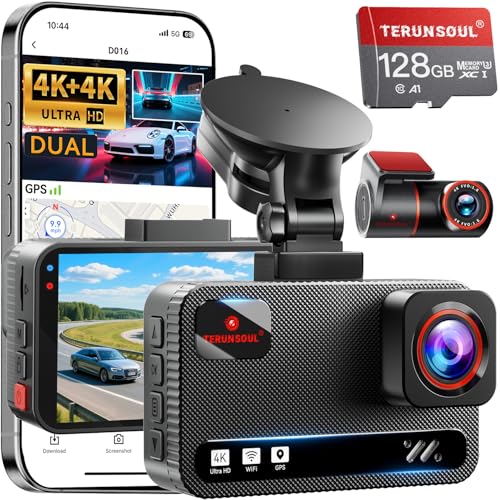
TERUNSOUl 4K+4K Dash Cam Front and Rear, Free 128GB Card Included, 5.8GHz WiFi Dash Camera for Cars, Built-in GPS, G-Sensor, 170°Wide Angle, 3" IPS Screen, 24H Parking Mode, Support 512GB Max
Ultra HD 4K Front + 4K Rear Recording: The Terunsoul dash cam supports dual-channel simultaneous recording, capturing both...
As an affiliate, we earn on qualifying purchases.
Conclusion
By addressing micro-stutter, you might find smoother gameplay, and sometimes, it’s as simple as adjusting a setting or updating your drivers. Funny enough, many gamers discover that the fix is right in front of them all along—hidden in plain sight. So, don’t overlook the small details; often, they’re the key to a seamless experience. After all, a little tweak can make all the difference between frustration and flawless gameplay.

70mai A810 4K Dash Cam Front and Rear, Dual Dash Camera for Cars with Starvis 2 HDR Night Vision, 4G LTE Support, ADAS, Built in GPS & WiFi, 24/7 Parking Mode, AI Motion Detection, Time-Lapse
【True 4K Video Quality】Capture every detail in stunning clarity with the 70mai dash cam's true 4K video quality....
As an affiliate, we earn on qualifying purchases.
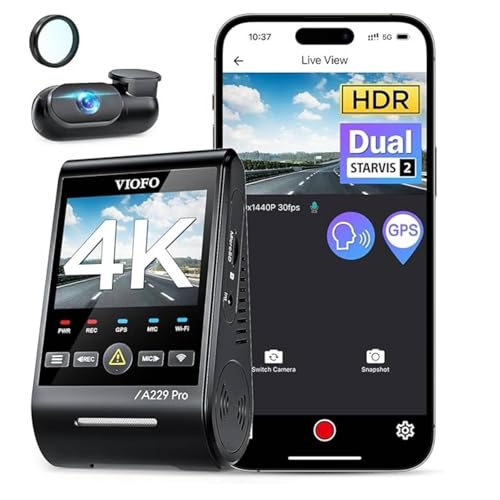
VIOFO A229 Pro 4K HDR Dash Cam, Dual STARVIS 2 IMX678 IMX675, 4K+2K Front and Rear Car Camera, 2 Channel with HDR, Voice Control, 5GHz WiFi GPS, Night Vision 2.0, 24H Parking Mode
【4K +2K Dual STARVIS 2 Sensors Dash Cam】 The pioneering A229 Pro dash cam is equipped with dual...
As an affiliate, we earn on qualifying purchases.