To set up a private media server, start by choosing reliable hardware with enough storage, like a NAS or repurposed PC, and make certain it’s scalable for future needs. Install user-friendly software such as Plex or Jellyfin, then organize your media files and connect your server to your network securely using Ethernet, strong passwords, and encryption. Optimize your setup for smooth streaming with hardware acceleration and keep your library well-maintained. If you keep going, you’ll discover detailed steps to make your media server perfect.
Key Takeaways
- Choose a reliable, scalable hardware platform and configure storage with redundancy (e.g., RAID, ZFS) for data protection.
- Select a user-friendly media server software like Plex or Jellyfin, and set it up with organized media folders.
- Enable secure remote access using SSL certificates and strong passwords to protect your private media library.
- Use wired Ethernet connections and optimize network settings for stable, high-speed streaming performance.
- Regularly update server software and back up your media library to maintain security and data integrity.
NAS storage device for media server
As an affiliate, we earn on qualifying purchases.
As an affiliate, we earn on qualifying purchases.
Choosing the Right Hardware for Your Media Server

Selecting the right hardware is essential to ensuring your media server runs smoothly and meets your needs. You have several options, including repurposing an old computer, buying a dedicated NAS, or building a custom system. Whichever you choose, the hardware must stay powered on and connected continuously. Prioritize storage capacity with room for expansion, as your media library will grow. Key components include a reliable processor, sufficient RAM, network interface cards, and a stable power supply. You can skip keyboard and mouse if you plan to manage the server remotely through web interfaces. The core goal is to build a setup that’s durable, scalable, and capable of handling your media demands without interruptions. Proper hardware selection lays the foundation for a smooth, efficient media streaming experience. Incorporating AI-powered data analytics can help optimize your media server’s performance and storage management over time. Additionally, choosing components with energy efficiency can reduce long-term operational costs and environmental impact, especially as these systems often run 24/7, making thermal management an important consideration for maintaining hardware longevity.
Planning and Configuring Storage Solutions
When planning your storage setup, you need to choose the right devices, whether HDDs, SSDs, or NAS drives, based on your performance and budget needs. Next, you’ll configure storage pools to organize and protect your data efficiently, often using tools like ZFS for redundancy. Considering your physical health and comfort, ensure that your setup minimizes strain during installation and maintenance. Additionally, selecting proper cooling solutions can help prevent overheating and prolong the lifespan of your drives. Incorporating effective airflow management techniques can further enhance cooling efficiency and drive longevity. Using appropriate ventilation methods is essential to maintain optimal operating temperatures in your media server environment. Finally, consider how you’ll scale your storage capacity over time to accommodate your growing media library without hassle. Incorporating a total-cost clarity approach can help you evaluate initial investments versus ongoing maintenance costs for your media server.
Choosing Storage Devices
Are you choosing the right storage devices for your personal media server? Your options include repurposing old computers, investing in NAS drives, or building a custom system. Consider your media library’s size and future growth—aim for substantial capacity with room to expand. Hard disk drives (HDDs) are budget-friendly for large storage, while SSDs offer faster access and better performance. NAS units from brands like Synology or QNAP provide pre-built, multi-bay solutions that simplify setup. Custom builds give you flexibility with PCIe expansion for additional drives or M.2 SSDs. Remember, your hardware needs to stay powered on continuously, so choose reliable, energy-efficient components. Selecting the right storage devices balances capacity, speed, and budget, ensuring smooth media streaming and future-proofing your server. Reliability and safety are key considerations when choosing storage hardware to prevent data loss and ensure consistent operation. Additionally, understanding the artistic significance of butter can inspire creative ways to personalize your setup, like custom-designed labels or themed decorations that reflect your interests. A comprehensive understanding of storage technology can also help you optimize your setup for better performance and resilience, especially when considering factors like data redundancy and backup solutions. It’s also helpful to stay informed about the latest advancements in storage technology to keep your system current and efficient.
Configuring Storage Pools
After choosing your storage devices, the next step is to plan and configure storage pools to maximize efficiency and data safety. Begin by evaluating your current and future storage needs, considering the types and capacities of drives. Use technologies like ZFS or RAID to create redundant pools that protect against drive failure. For example, a RAID 5 or ZFS mirror setup offers a good balance of performance and redundancy. Organize your media files into logical pools to simplify management and access. When configuring, verify your storage solution supports expansion, allowing you to add more drives later. Properly setting up your storage pools ensures reliable, scalable, and efficient data management, reducing the risk of data loss and improving media streaming performance across your network.
Scaling Storage Capacity
To effectively scale your storage capacity, you need to carefully plan how to expand your media server’s storage solutions as your library grows. Start by evaluating your current needs and projecting future growth. Decide whether to add more drives to existing systems, upgrade to larger drives, or integrate additional storage devices like NAS units or external drives. Consider using storage pooling technologies such as ZFS for redundancy and efficient management. Confirm your hardware supports expansion—look for systems with extra drive bays or PCIe slots. Network bandwidth and performance should also be factored in to prevent bottlenecks. Regularly monitor storage utilization to identify when to expand, and plan upgrades during low-usage periods to minimize disruption. Additionally, it’s wise to explore Gold IRA options to diversify your investments and safeguard your assets during hardware upgrades. Proper planning ensures your server can grow seamlessly with your media collection, making scalability a vital aspect of storage management. A thorough understanding of high-performance hardware can further optimize your setup for future growth, especially when considering the impact of cookies on user experience, which can influence network performance and user interactions.
Selecting the Best Software Platform for Your Needs

Choosing the right software platform depends on your specific media needs and technical comfort level. If you want a user-friendly setup with polished interfaces, Plex offers a seamless experience with apps for various devices and easy library management. Jellyfin and Emby provide alternative options with different features and customization options, appealing if you prefer open-source or more control. Kodi works well if you want a dedicated media center for local playback, especially on a single device. DLNA/UPnP solutions like Universal Media Server or Serviio are suitable for simple streaming to compatible devices without complex configurations. Consider your preferred device ecosystem, desired features, and technical skills to pick the platform that fits best. This choice impacts usability, expandability, and how you access your media library. Additionally, many of these platforms support a variety of media formats and anime movies, ensuring broad compatibility with your collection. For those concerned about security and privacy, choosing a platform with good community support and regular updates can help safeguard your media environment. Incorporating self-awareness when selecting your media server can also help you make a more informed decision tailored to your personal preferences and habits. Moreover, assessing the software’s update frequency can ensure ongoing improvements and security patches for your media setup. Being aware of potential security vulnerabilities in your chosen platform is crucial to maintaining a safe media environment.
Installing and Setting Up Your Media Server
Installing and setting up your media server begins with downloading the appropriate software for your chosen platform, whether that’s Plex, Jellyfin, Emby, or another option. Once downloaded, run the installer and follow the setup wizard. It guides you through naming your server, selecting media folders, and configuring basic settings. During installation, guarantee your device is connected to your network for smooth setup. Proper network configuration improves server performance and ensures reliable streaming.
Configuring Network Access and Security Measures

Setting up secure and reliable network access is essential for your personal media server. First, connect your server via Ethernet for the most stable connection, reducing buffering and interruptions. Enable network discovery features like Windows auto-discovery or Bonjour to simplify device recognition. Use Samba shares to allow Windows devices to access storage seamlessly. To protect your data, set up SSL certificates for remote access, ensuring encrypted connections outside your local network. Implement strong, unique passwords for all accounts and change default credentials immediately. Configure your router’s firewall to restrict access to authorized IP addresses and disable unnecessary ports. Regularly update your server’s software and firmware to patch security vulnerabilities. These measures keep your media accessible while preventing unauthorized access. Additionally, regional legal resources can provide guidance if you encounter legal or security issues related to your media setup, ensuring compliance and protection.
Optimizing Performance for Smooth Streaming
To guarantee smooth streaming, you need to focus on hardware that handles transcoding efficiently, especially for high-resolution content. Managing your network bandwidth is also vital to prevent buffering and lag during playback. Additionally, optimizing your video settings can reduce strain on your server and improve overall streaming quality.
Hardware for Transcoding Efficiency
Achieving smooth streaming through hardware transcoding requires a powerful processor capable of handling real-time video conversions without bottlenecks. Look for CPUs with multiple cores and high clock speeds, such as AMD Ryzen or Intel Core i7/i9 series, designed for intensive multitasking. Integrated graphics, like Intel Quick Sync or AMD VCE, can accelerate transcoding tasks without extra hardware. Additionally, ample RAM ensures the system can manage multiple streams simultaneously. A fast, reliable storage solution—preferably SSDs—reduces data access delays during transcoding. Guarantee your network interface card (NIC) supports gigabit speeds to handle high-throughput data transfer. Power supplies should be robust enough to support continuous operation without fluctuations. Investing in these components guarantees your media server can transcode efficiently, delivering smooth, uninterrupted streaming.
Network Bandwidth Management
Optimizing network bandwidth is key to guaranteeing smooth streaming, especially when your media server handles multiple simultaneous streams or high-resolution content. You can do this by prioritizing traffic, managing router settings, and limiting background downloads during streaming sessions. Use Quality of Service (QoS) features on your router to allocate bandwidth to your media server, reducing interruptions. Additionally, connect your server via Ethernet instead of Wi-Fi for stability. Here’s a quick guide:
| Tip | Benefit |
|---|---|
| Enable QoS | Prioritizes streaming traffic |
| Use wired connection | Ensures consistent speed |
| Limit other devices | Reduces network congestion |
| Schedule downloads | Keeps bandwidth free during peak times |
Adjusting these settings helps your media streams run smoothly without buffering or lag.
Optimizing Video Settings
Ensuring smooth streaming requires configuring your video settings to match your hardware capabilities and network conditions. Start by adjusting the streaming quality options within your media server software, selecting a resolution and bitrate suitable for your network speed. If your hardware struggles with high-resolution playback, enable automatic transcoding to convert videos to lower formats on-the-fly. For 4K content, ensure your processor and network can handle the increased data load; otherwise, limit streaming to HD. Use hardware acceleration features for supported devices to reduce CPU usage and improve performance. Regularly update your server software to benefit from performance improvements and bug fixes. By fine-tuning these settings, you guarantee a smoother, more reliable streaming experience tailored to your setup.
Maintaining and Expanding Your Media Library
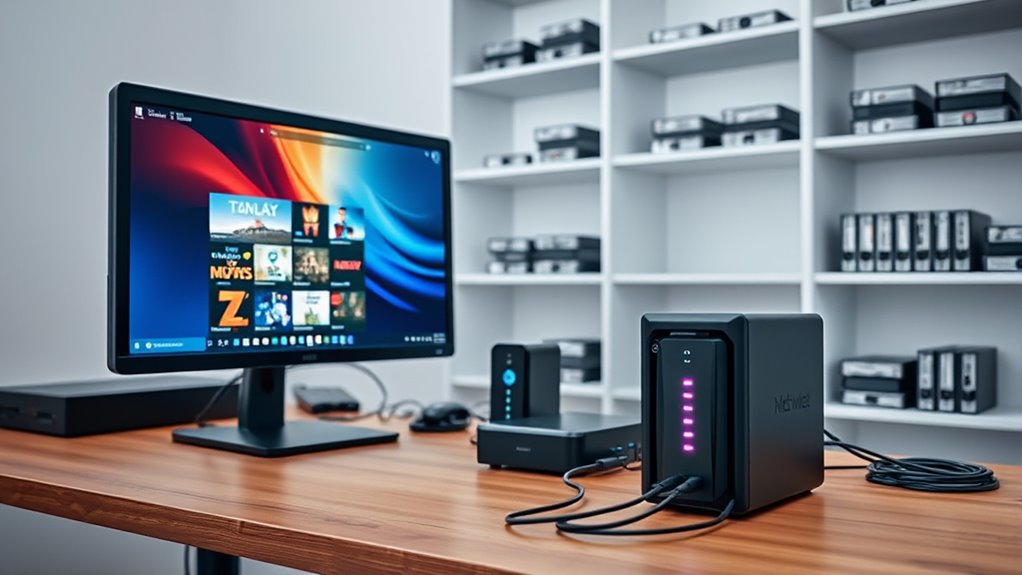
Maintaining and expanding your media library requires regular organization and thoughtful planning. You should routinely review your collection, removing duplicates and outdated files to keep everything tidy. Categorize content logically—by genre, year, or series—to make navigation easier. As your library grows, add storage capacity, either by upgrading existing drives or integrating new ones via your NAS or custom build. Use storage pooling technologies like ZFS to manage data efficiently and ensure redundancy. Keep your media files properly labeled and organized to streamline indexing during server scans. Regularly back up your library to prevent data loss. When expanding, consider hardware upgrades such as additional drive bays or faster drives to accommodate new content while maintaining smooth streaming performance.
Frequently Asked Questions
How Do I Ensure My Media Server Stays Secure From Unauthorized Access?
You guarantee your media server stays secure by using strong, unique passwords for your admin and user accounts. Enable encryption like SSL for remote access, and keep your software and firmware up to date to patch vulnerabilities. Limit network access through firewalls and only open necessary ports. Regularly monitor your server logs for suspicious activity, and consider setting up VPN access for added security when accessing remotely.
What Are the Best Practices for Backing up My Media Library?
Your media library is priceless, so backing it up is vital. Regularly create backups on external drives or cloud services like Google Drive or Dropbox. Use automated backup schedules to avoid forgetting, and consider setting up RAID configurations if your hardware supports it for real-time redundancy. Test your backups periodically to ensure they restore smoothly. This way, you’ll safeguard your collection from disasters, keeping your media safe and accessible forever.
How Can I Remotely Access My Media Server From Outside My Home Network?
To access your media server remotely, you need to set up secure remote access. Start by configuring your router to enable port forwarding for your server’s IP and port. Use a dynamic DNS service to handle changing IP addresses. Protect the connection with SSL certificates and enable VPN access if possible. Test your setup outside your home network to ensure smooth, safe streaming from anywhere.
What Hardware Specifications Are Needed for 4K Video Streaming?
Think of your media server as a sports car; for 4K video streaming, it needs a powerful engine. You’ll want a high-end processor, at least an Intel Core i7 or AMD Ryzen 7, with 16GB or more RAM. A dedicated GPU, like NVIDIA’s RTX series, helps with transcoding. Fast SSD storage and a gigabit Ethernet connection guarantee smooth playback without buffering. These specs keep your 4K content flowing seamlessly, just like a well-tuned engine.
How Do I Troubleshoot Common Connectivity or Performance Issues?
To troubleshoot connectivity or performance issues, first check your network cables and Wi-Fi signal strength, ensuring your device is properly connected. Restart your server and router to clear temporary glitches. Verify your hardware meets the demands of streaming, especially for 4K content. Use network monitoring tools to identify bottlenecks. Update your server software and firmware regularly. If issues persist, isolate devices to determine if the problem lies with your network or server setup.
Conclusion
Setting up your personal media server might seem intimidating, but with the right hardware, software, and security, you’ll have a private oasis for all your favorite content. Think of it as your own digital Batcave—secure, organized, and ready for action. Keep it updated and expand your library over time. Remember, even in this digital age, a little patience and a dash of good ol’ fashioned tinkering go a long way. Happy streaming!