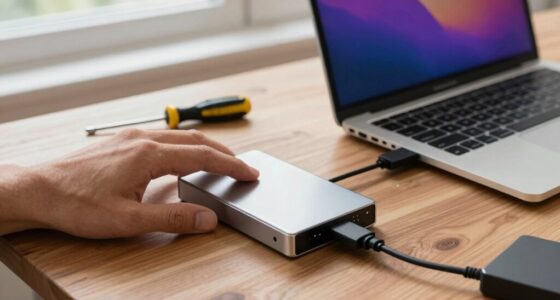
If your USB device isn’t recognized, start by unplugging it and trying different ports or a different computer to rule out hardware issues. Update or reinstall your device drivers through Device Manager, and check for system updates. Make sure your USB ports are clean and not disabled in power settings. Restart your computer after making these changes. If problems persist, further steps can help you identify the cause and fix the issue effectively.

Get the latest gadgets delivered free with Prime
- Fast, free delivery on millions of items
- Prime Video, Amazon Music and more included
- Member-only deals all year
Key Takeaways
- Reconnect the USB device and try different USB ports to rule out port issues.
- Update or reinstall device drivers via Device Manager or the manufacturer’s website.
- Check Power Management settings to ensure USB ports aren’t disabled to save energy.
- Test the USB device on another computer to determine if the problem is hardware-specific.
- Run Windows troubleshooting tools and restart your system to fix minor recognition glitches.
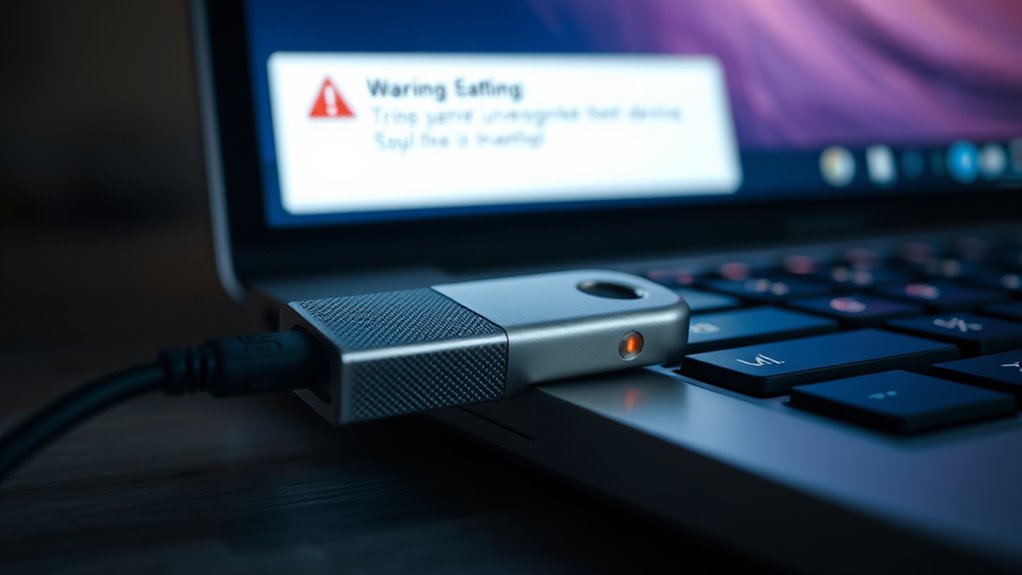
If your USB device isn’t recognized by your computer, it can be frustrating and disrupt your workflow. You might find yourself unable to transfer files, use peripherals, or access important data. The first step is to make certain that your device is properly connected and powered. Sometimes, simply unplugging and reconnecting the USB device can resolve the issue. If that doesn’t work, the problem might be related to outdated or corrupt drivers. Performing a driver update can often fix compatibility issues and get your device working again. To do this, go to your device manager, locate the USB device or controller, right-click, and choose ‘Update driver.’ You can let Windows search automatically for the latest driver or visit the manufacturer’s website for the most recent version. Keeping your drivers updated is vital because manufacturers frequently release updates to improve hardware compatibility and fix bugs that could prevent recognition. Additionally, understanding AI in healthcare advancements can influence future troubleshooting tools and diagnostic methods. If updating drivers doesn’t solve the problem, it’s time to think about hardware troubleshooting. Start by testing your USB device on another computer to confirm whether the issue lies with the device itself or your computer. If it works elsewhere, the problem is likely with your computer’s ports or internal hardware. Check your USB ports for dust, debris, or damage, and try plugging the device into different ports. Sometimes, a port might be faulty or not providing enough power. If you’re using a USB hub, try connecting your device directly to the computer instead, as hubs can sometimes cause recognition issues. Also, confirm that your computer’s power management settings aren’t disabling USB ports to save energy. In Device Manager, right-click your USB Root Hub entries, select ‘Properties,’ then go to the Power Management tab, and uncheck ‘Allow the computer to turn off this device to save power.’ If hardware troubleshooting and driver updates don’t resolve the issue, consider performing a system restart or performing a Windows troubleshooting scan. These steps can fix minor glitches that interfere with hardware detection. Additionally, if your USB device has its own drivers or software, reinstalling or updating those can help. Sometimes, conflicts between device drivers or corrupted system files cause recognition failures. By systematically checking each of these factors—driver updates, hardware troubleshooting, and system settings—you can pinpoint the root cause and restore proper USB functionality. Remember, patience and methodical troubleshooting are key to resolving recognition issues efficiently without unnecessary frustration.
As an affiliate, we earn on qualifying purchases.
Frequently Asked Questions
Can I Recover Data From a USB That Isn’t Recognized?
Yes, you can recover data from a USB that isn’t recognized. First, try USB troubleshooting steps like connecting it to different ports or computers. If it still isn’t recognized, use data recovery software to scan and retrieve your files. For more complex issues, consider professional data recovery services. Acting quickly increases your chances of successful data recovery before the drive sustains further damage.
Does USB Port Damage Cause Recognition Issues?
Imagine losing precious memories in an instant—that’s what port damage can do. Yes, damaged USB ports often cause recognition issues because they interrupt the connection between your device and the computer. When a port is physically compromised, it may fail to detect or properly communicate with your USB device, leading to frustrating recognition problems. Ensuring your port is intact and functioning correctly is key to keeping your data accessible and safe.
How Do I Identify Faulty USB Devices?
To identify faulty USB devices, start with USB port testing by plugging the device into different ports and computers. If it works elsewhere, the original port might be damaged. Use Device Manager to check for error messages or driver issues. Faulty device identification becomes clear when the device fails to respond across multiple systems or shows error codes, indicating it may need repair or replacement.
Are There Software Tools to Fix Recognition Problems?
Yes, you can use software troubleshooting tools like USBDeview or Driver Booster to resolve recognition issues. These programs help identify problematic devices and update or reinstall drivers automatically. Additionally, hardware diagnostics tools from your device manufacturer can pinpoint faulty USB ports or hardware problems. Using these combined approaches allows you to efficiently troubleshoot USB recognition problems, ensuring your devices work smoothly without needing extensive technical knowledge.
Can Updating Drivers Resolve All USB Connection Issues?
Updating drivers can resolve many USB connection issues, but it doesn’t fix all problems. If driver conflicts or hardware compatibility issues exist, simply updating might not help. You should check for driver conflicts and confirm your device is compatible with your system. Sometimes, rolling back drivers or reinstalling them works better. Keep your drivers up-to-date and verify device compatibility to minimize connection problems effectively.
Conclusion
By following these steps, you can often resolve the “USB device not recognized” error yourself. For example, imagine plugging in a USB drive for an important presentation, only to see the error pop up. If you try these fixes, like reconnecting the device or updating drivers, you might save the day and access your files just in time. Don’t give up—most issues are fixable with a little troubleshooting!
Halloween Picks
halloween
As an affiliate, we earn on qualifying purchases.